

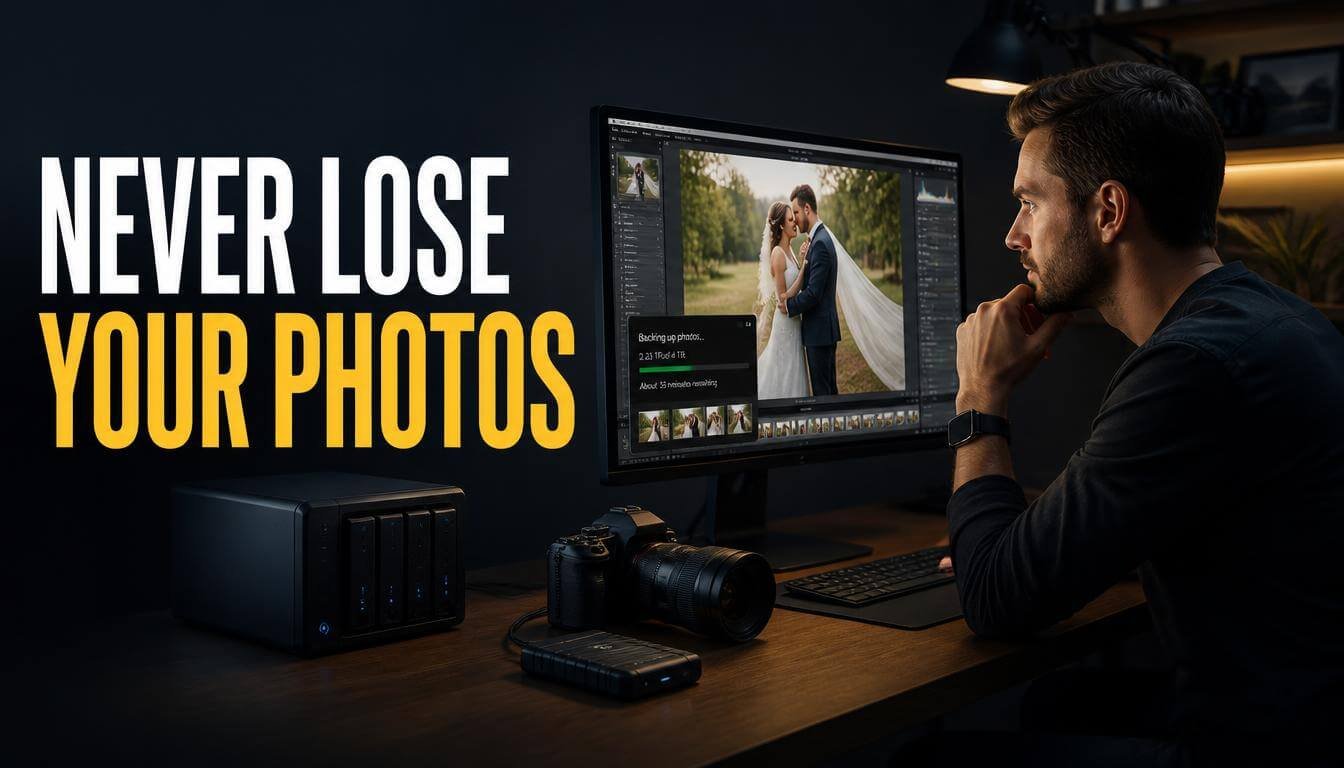
Building a no-fail data backup strategy for freelance photographers literally saved my career after a sudden hard drive crash wiped out an entire wedding gallery at 2 AM. I sat on my cold kitchen floor staring at a blank screen, feeling my stomach completely drop out. That one brutal nightmare forced me to finally get serious about protecting every single file I shoot.
The 3-2-1 Rule Is Your Entire Foundation
Every solid no-fail data backup strategy for freelance photographers starts with the same boring but brilliant principle called the 3-2-1 rule. You keep three total copies of every file, stored on two different types of media, with one copy sitting offsite. I know it sounds too simple to actually work, but this single rule has kept my client galleries safe through two laptop deaths and one apartment flood. The real magic lives in the separation. If your editing laptop dies, your external drive still has everything. If your apartment floods, your cloud copy stays completely untouched. You stop relying on one piece of hardware to hold your entire business together, which is exactly how most photographers lose years of work in a single afternoon. Write this rule on a sticky note and tape it to your monitor if you need to. The principle never changes even as your storage gear evolves over the years.
Pick Your Primary Storage and Stop Hoarding Drives
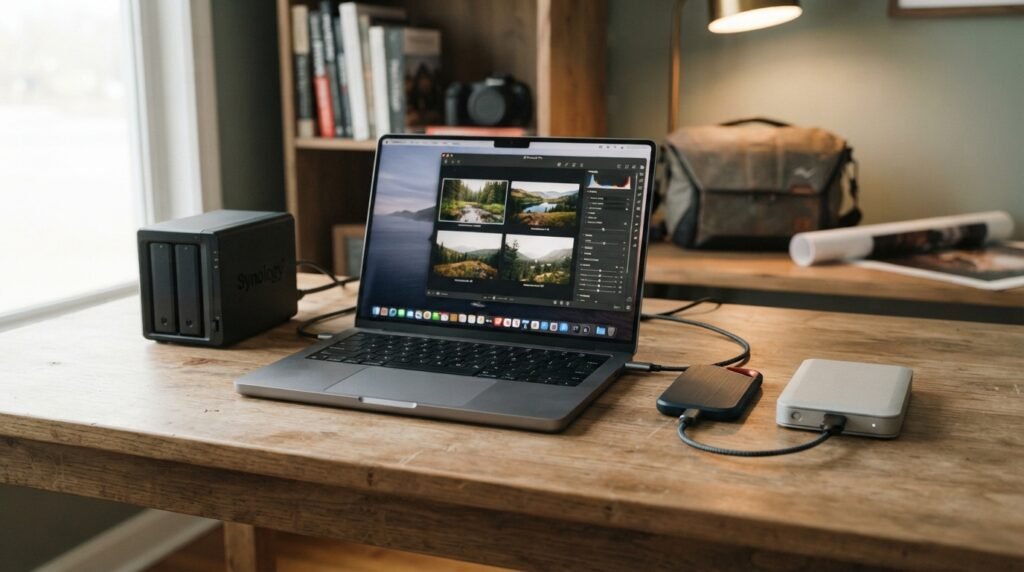
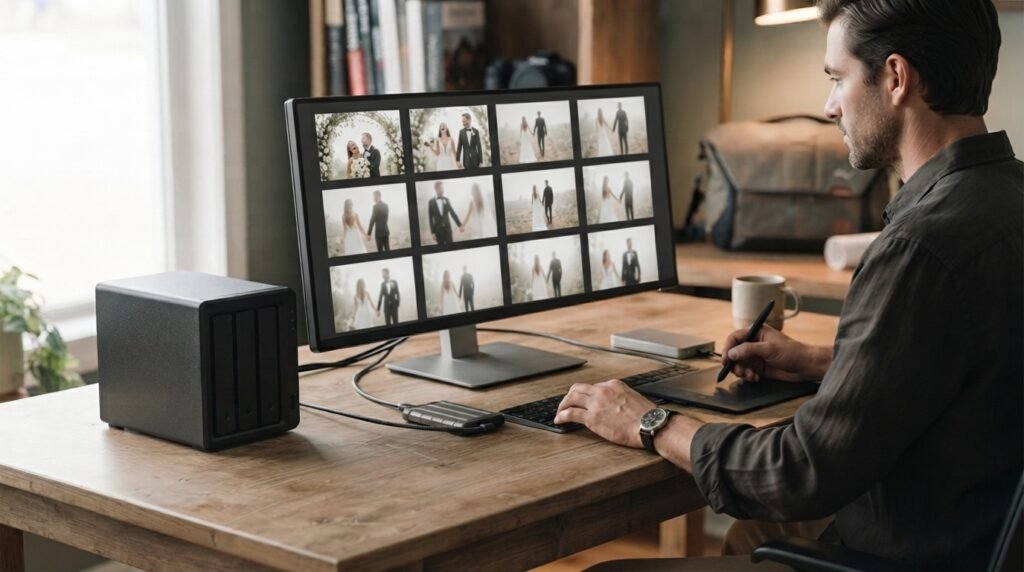
Most photographers I know have a desk drawer full of random external hard drives from different years, and none of them are labeled. I was that photographer for way too long. The turning point came when I bought a Synology DS923+ NAS and consolidated everything into one central hub at my desk. A NAS (network-attached storage) acts like your own private cloud that lives right in your office. You can set it up to mirror your working drives automatically, and it handles RAID redundancy so a single drive failure inside the unit does not kill your files. If a NAS feels like overkill for your current volume, a pair of LaCie Rugged SSDs works beautifully for on-the-go shoots. Just pick one primary system and commit to it instead of spreading files across twelve random USB sticks you found in your camera bag. A clean, organized storage system makes every other step in your backup workflow dramatically easier to maintain over the long run.
Automate Your Local Backups So You Never Have to Remember
Manual backups fail because humans forget. I skipped my Friday backup routine for three weeks straight once, and of course that was the exact week my MacBook Pro decided to die during a Lightroom export. Now I use Carbon Copy Cloner on my Mac to run incremental backups every hour while I edit. On Windows, FreeFileSync or Macrium Reflect does the same job just as well. The goal is to make the process completely invisible. Your computer should back itself up to your NAS or external drive without you clicking a single button. Set it and walk away. The only time you should think about your local backup is when you get the occasional notification that it finished successfully. If you are manually dragging folders onto a drive every Sunday night, you are one busy wedding season away from forgetting entirely. Automation removes the human error factor, and that is the whole point.
Add a Cloud Layer That Runs While You Sleep
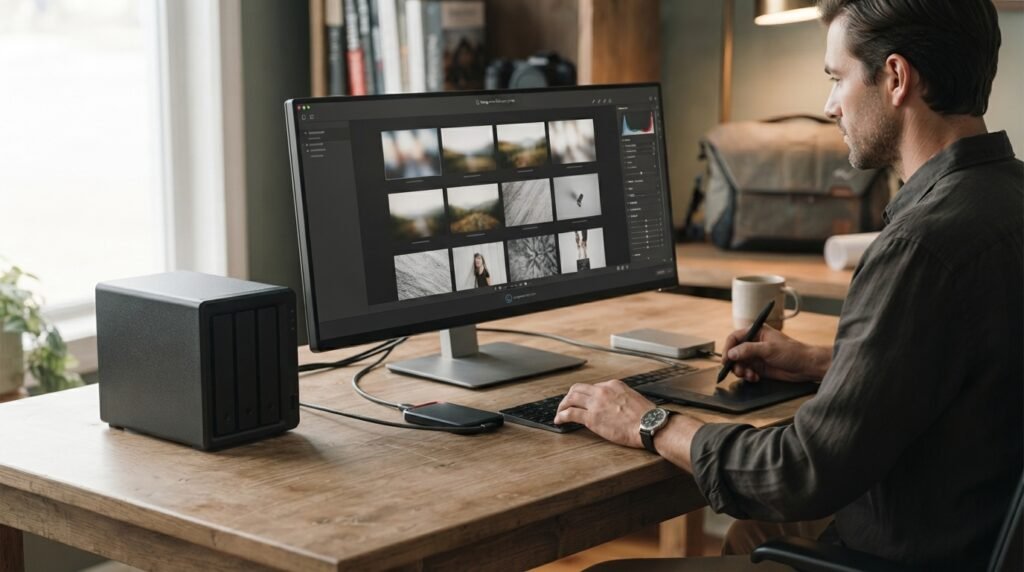
Your offsite copy is the one that saves you when everything physical goes wrong. I use Backblaze because it offers unlimited storage for a flat annual fee, and it quietly uploads every new file in the background without me babysitting it. The initial upload took about three weeks for my 14TB library, which felt like forever, but now it only pushes small incremental changes overnight. Some photographers prefer Amazon S3 or Google Drive for more granular control, and those work fine if you do not mind managing folder structures yourself. The important part is that your cloud backup lives on a server in a completely different geographic location from your studio. A fire, a break-in, or a flood cannot touch files sitting in a data center three states away. That geographic distance is the whole point, and it is the one layer you cannot replicate with local hardware alone no matter how many drives you buy.
Build Your No-Fail Data Backup Strategy for Freelance Photographers Around Redundancy
Redundancy is not paranoia when your entire income depends on image files. My current setup layers a working SSD, a Synology NAS, two LaCie Rugged drives that rotate between my office and a safety deposit box, and Backblaze for cloud coverage. That gives me five copies of every delivered gallery spread across four different physical locations. Is it overkill? Maybe. But I have never lost a client file since I built this no-fail data backup strategy for freelance photographers three years ago, and that peace of mind is worth more than the cost of a few extra hard drives. The key is layering different types of storage so that no single point of failure can take everything down at once. Each layer catches what the others might miss, and together they create a safety net that actually holds up under real-world pressure. You do not need my exact setup, but you do need multiple overlapping layers.
Test Your Backups Before You Actually Need Them
This is the step almost everyone skips, and it is the one that matters most. A backup you have never restored is just a hope, not a plan. I learned this the hard way when I tried to pull an old engagement session from my cloud backup and discovered the folder had synced incorrectly, leaving me with corrupted thumbnails instead of full-resolution RAW files. Now I run a quarterly restore test where I pick a random client gallery and try to recover it from each backup layer. I time how long it takes and check that every file opens cleanly in Lightroom. The whole process takes about twenty minutes, and it catches problems while they are still small enough to fix. Do not wait until a client is emailing you in a panic to find out your backup failed silently months ago. Twenty minutes four times a year is a tiny price to pay for genuine confidence in your system.
Create a Backup Schedule You Can Actually Maintain
The fanciest setup in the world is useless if you abandon it after two months. I tried a complicated system involving four different software tools and a color-coded spreadsheet, and I quit within six weeks because it demanded too much of my time between shoots. Now my entire backup routine runs on autopilot except for one monthly task: I physically swap my offsite LaCie drive on the first of every month. That takes about ninety seconds. The rest happens in the background through Carbon Copy Cloner and Backblaze. If your backup strategy requires more than ten minutes of active effort per week, you will eventually stop doing it. Simplicity beats complexity every single time, especially during peak wedding season when you barely have time to eat lunch, let alone manage a five-step backup workflow. Build the laziest possible version of your system and you will actually stick with it for years.
Frequently Asked Questions
How often should I back up my wedding and portrait files?
Ideally, your software should back up working files every hour or at least daily. For cloud backups, continuous syncing is best. I treat every shoot day as a non-negotiable backup day. The moment I get home and import my cards, my NAS and Backblaze start pulling copies immediately. Waiting until the end of the week is just asking for trouble.
Is Backblaze enough on its own for a no-fail data backup strategy for freelance photographers?
No. Backblaze is a fantastic offsite layer, but it is not a complete solution alone. If your only copy lives in the cloud and your internet dies during a restore, you are stuck waiting days for a physical drive shipment. Pair it with local NAS or external drive backups so you can recover files instantly while the cloud handles disasters.
What should I do if my NAS drive fails?
Most NAS units use RAID configurations that let you swap out a failed drive without losing any data. I keep a spare drive on my shelf specifically for this scenario. When a drive in my Synology threw a warning last year, I popped in the replacement and the array rebuilt itself overnight. Just do not ignore those warning emails.
Do I really need both cloud and local backups?
Absolutely. Local backups give you speed, and cloud backups give you geographic safety. If your house floods or someone breaks into your studio, local drives are gone. If your internet is down for a week, cloud restores are painfully slow. Having both means you can handle almost any disaster without losing client work or your sanity.
How much does a full backup setup cost for a freelance photographer?
My entire setup cost around $1,200 upfront for the Synology NAS, drives, and SSDs, plus about $95 per year for Backblaze. That is less than the cost of reshooting a single wedding. You can start cheaper with just two external drives and a Backblaze subscription for under $200 total. Scale up as your archive grows and your budget allows.
Conclusion
Your files are your livelihood, and treating them like an afterthought is the fastest way to lose everything you have worked so hard to build. Start with the 3-2-1 rule, automate what you can, and test your restores before disaster forces you to. What does your current backup setup look like, and where are the gaps you keep ignoring?